

My First Post: True Story: I found Substack Honestly REALLY Confusing, so I decided to simply "Write Over" their Template Post that seemed to be created for me, called: "How to use the Substack editor
Ok, so I added my own Subtitle as theirs was Blank: SUBTITLE: Wow, I feel Dumb but Who Cares

Hi! This is a draft post. Did you know that there are a bunch of nice formatting options in this editor? You know what, maybe instead of just typing OVER what they wrote, I will cross their out, and insert my own, just like I am doing right now. They next are showing you an example of using the BLOCK QUOTE, so I will again cross that out, and put my own Block Quote. For example:
Block quotes are a nice way to put a quote or excerpt from a source. They make it clear that it is a quote.Be Nice. It’s not that hard.
Of course, you can also do bold, italic, links, and all that good stuff. Ok, wow, my Rules with this keep changing. So that last line was theirs, but I kept it. I actually used bold and italics in my quote, and in this line! I think when I become a Pro at Substack, I will look back at this First Post and either laugh my ass off, or be very proud of it! Or both!
Headings and Embeddings
You can have headings in posts. Just use the “Style” list in the toolbar. You can also embed different types of content. To add an image, just drag it in here or use the image selector tool in the toolbar. Ok, wow, I think I just found an opportunity area for Substack. As I am doing this, I thought to myself maybe I can change the Color of the Font for their template stuff instead of crossing it out, OR maybe I can write my original text in a different color font.
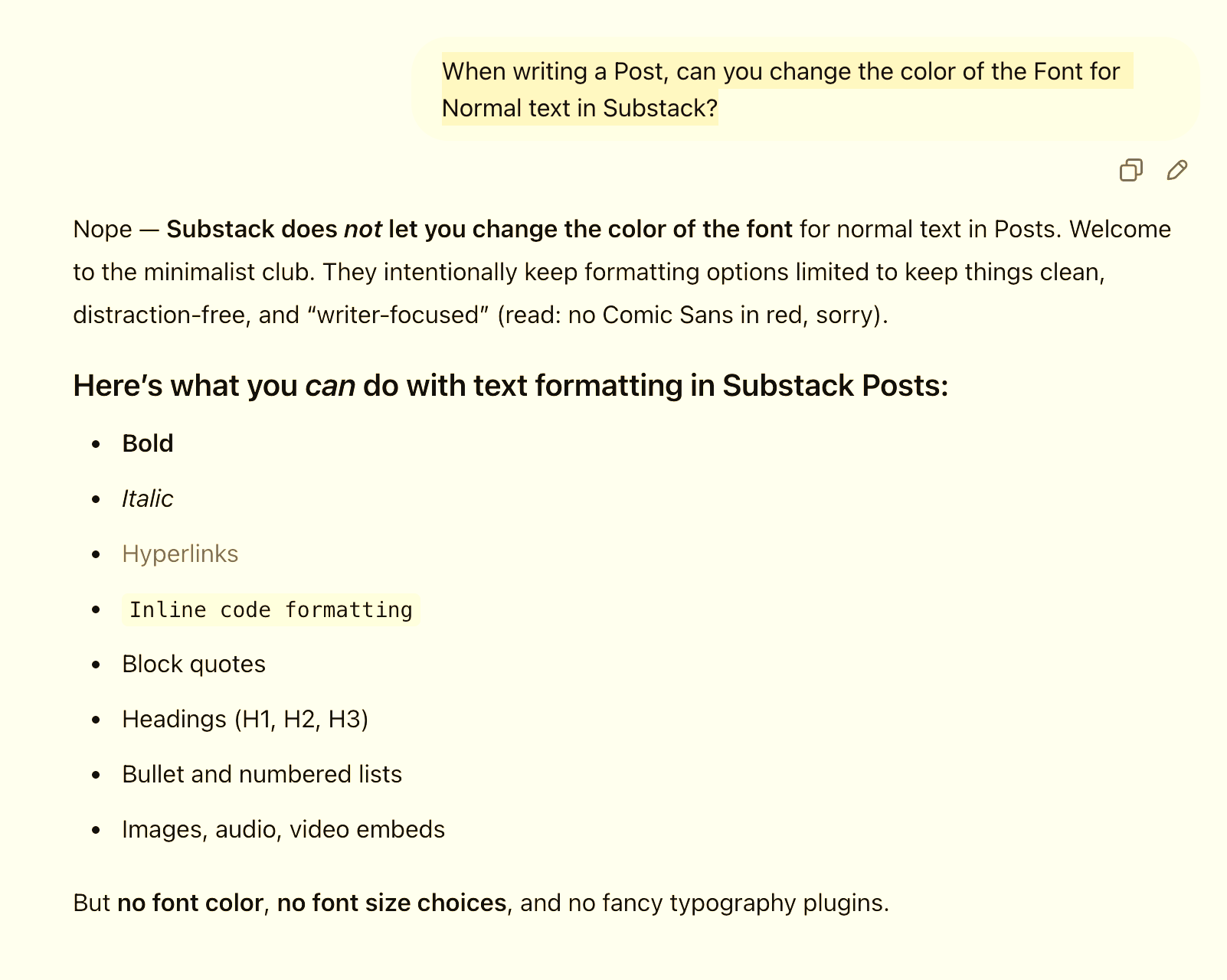
I could not figure out how to do that in their Menu Bar, and so I called on the person that seems to be my Lifeline for everything these days… can you guess… Bueller… Bueller… No, not Ferris Bueller, but the one and only ChatGPT! Ok, so I am now replacing their nice example image of a “Swing on a Tree at Sunset”, with the Screenshot of my chat with ChatGPT:
MY IMAGE BELOW:
Ok, so their is my Screenshot Image, but I did EDIT it here, and made it Yellow just for some contrast, since it was white on white. I left their Image as well below, the nice ‘Swinging into Sunset’, as I felt bad deleting such a serene shot!

For a tweet, YouTube video, Vimeo video, Spotify track, or SoundCloud embed, just paste the relevant link on a new line (don’t grab the embed code; it won’t work).
Ok, again, I left what they wrote and simply struck through it. I also am leaving Hamish’s Tweet because I actually kind of agree! But here is mine, and again, I am just pasting the Tweet Link using the LINK in the NAV BAR, not the Embed Code:
My Tweet Link: Ok, that’s Odd. that did not seem to work?
https://x.com/deepshallowdive/status/1909714474866798754
My YouTube Link: Ok, that worked. This is a GREAT episode BTW. Jeremy is awesome and very knowledgable if you are interested in this Topic.
My Vimeo Link: Ok, that also worked. I wonder why the X/Tweet did not work?
My Spotify Link: That’s my Podcast again, I know. I am SO self-serving! Ha!
OK, since I don’t use SOUNDCLOUD, I will stop here. Again, instead of Deleting THEIR stuff, I left it in their. I will have to reach out to their Customer Support sand see why the link from X did not display that Tweet. If and when I figure that out, I will come back here and update this part.
THEIR STUFF: I left it there for you. I am getting good at the BOLD + Italics right!

To delete a post, click on the Settings button (just to the left of Publish), and scroll down and find the delete button.
Ok, so obviously I am not going to DEL this Post, and instead I will absolutely Publish it. It would be cool if the SUBSTACK Peeps somehow caught wind of this, and then this thing went Viral, and I ended up exploding into superstardom… but I digress.
It looks like there are 2 ways to publish. I really don’t have many Followers right now, and a few of them are my emails, so I will use #2 below.
Thanks for comin along for this Ride with me. If you are or were as equally confused as I was with Substack, then hopefully this helped you as well!
All the Best in your Stacking! (I don’t even think that’s what they call it, but then again I also don;t even think anyone besides myself is going to even right this! If you do read it, reach out and say Hi!)
Best - RayD
Publishing Changes
You have two publishing options:
Publish – this publishes your post only to the web.
Publish & Send – this publishes your post to the web and at the same time sends the post out by email.
Note: Once you have sent an email out, the only way to send it again is to create an entirely new post. Any edits you make to a post that has already been published will only be reflected on the web. So, there’s no need to worry about accidentally spamming your subscribers with repeat emails.
Finally, if you import posts from some other site’s archives, you can backdate them so they are published in the correct order and associated with the correct publication dates. To do so, after you have published a post, go into that post’s Settings (just to the left of the Publish button) and select the desired date.
If you have any questions, you can check out our Help Center or contact support!